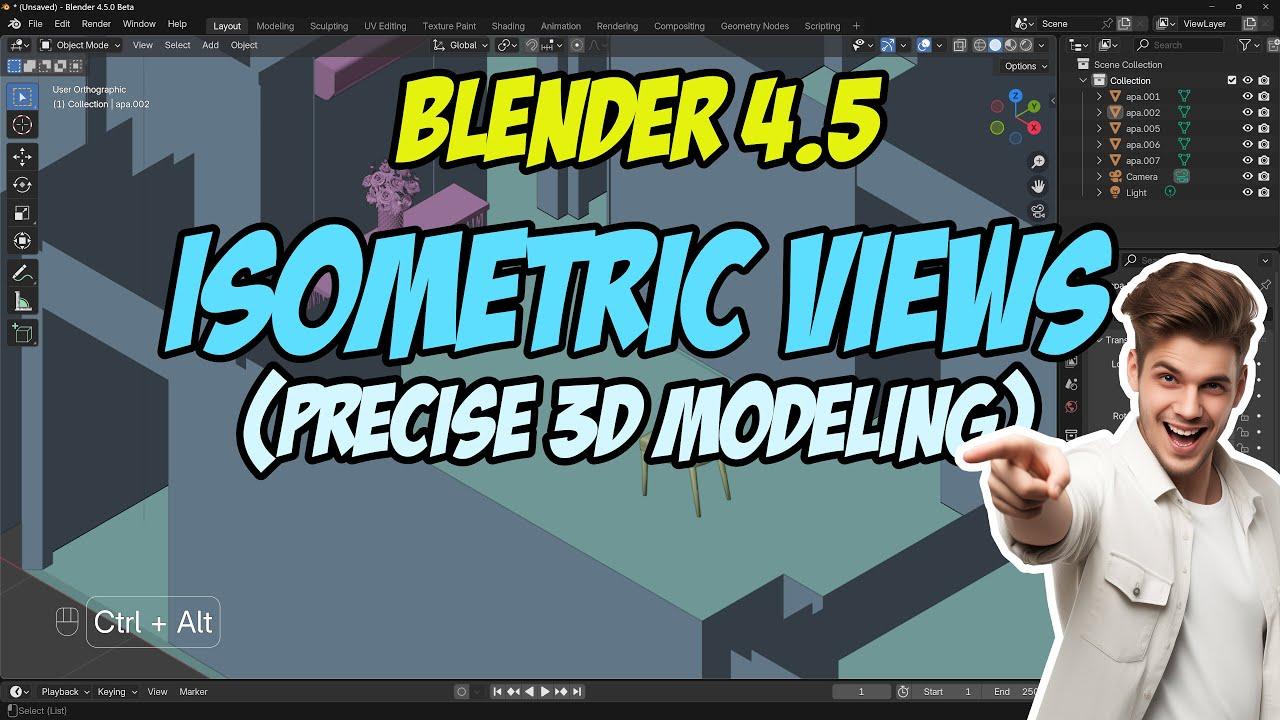
In this tutorial, you will learn how to set isometric views in Blender 4.5 for precise modeling. Presented by Blender 3D Architect, this video guides you through adding an isometric view option to your 3D Viewport, a crucial feature for accurate modeling.
Comparing Blender with Other Software
The tutorial begins with a comparison of isometric view settings in Blender versus other software:
- AutoCAD: Easily switch to isometric view using the box navigation tool.
- Rhino: Set isometric views through viewport options.
- SketchUp: Use the views toolbar to change to isometric view.
Setting Isometric Views in Blender
In Blender, setting isometric views requires an add-on:
- Install PDT Add-on:
- Go to Edit > Preferences > Add-ons.
- Search for PDT (Precision Drawing Tools) and install it.
- Access PDT Options:
- Find PDT options in the sidebar.
- Use the PDT View Control section to access the isometric button.
- Activate Isometric View:
- Press the isometric button to change your 3D Viewport to isometric view.
- Rotate the view to get different isometric angles (e.g., southwest, northeast).
Learning Resources
For more in-depth learning, check out the resources from Blender 3D Architect:
- Workshop: Precise Modeling Workshop ( available on Udemy and Gumroad)
- Books:
- Blender 4.3: Precise Modeling for Architecture, Engineering, and 3D Printing (available in English, French, Spanish, and German)
Join the channel for more tutorials and resources.
(This summary was generated using AI)
Blender 4.5: Adding Isometric Views for Precise Modeling
- Price type: Free
- Price: Free