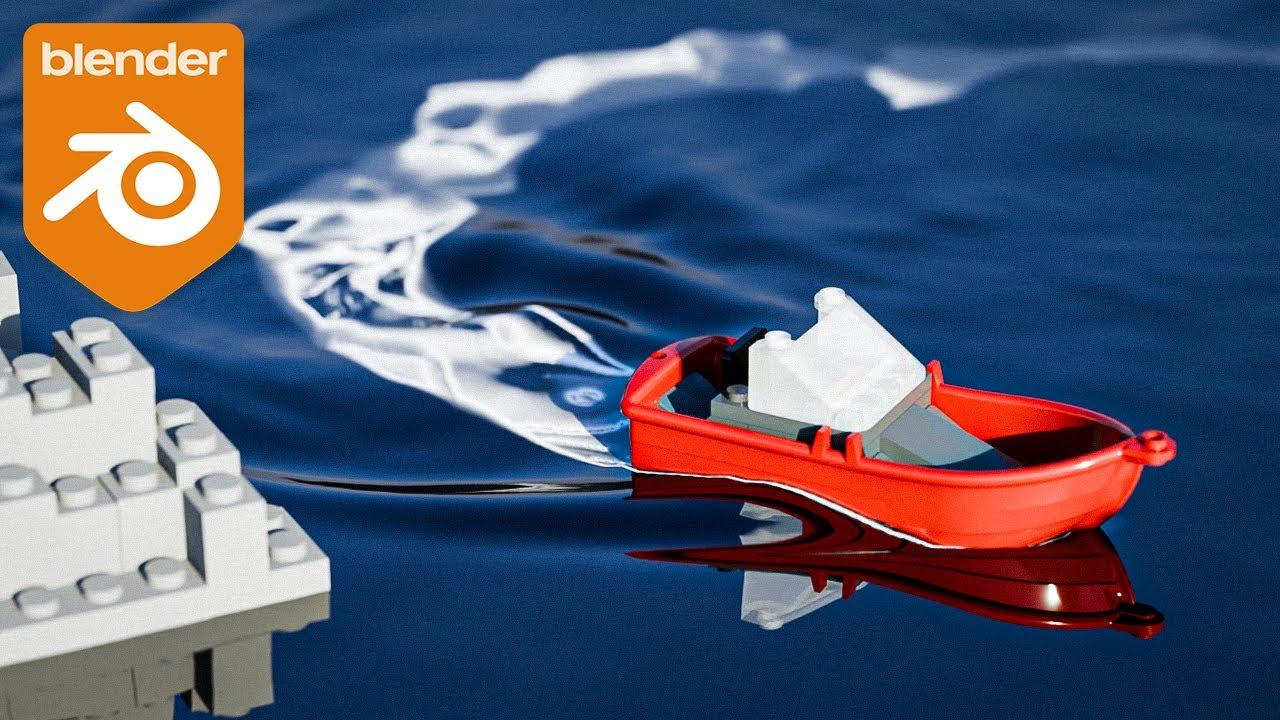
In this tutorial from Blender Made Easy, you’ll learn how to create a satisfying LEGO boat animation using Blender’s Dynamic Paint system. Stephen Pearson guides you through setting up the scene, creating a wake trail, and simulating water ripples and waves.
Setting Up the Scene
- Adding the Boat and Rocks: Download the blend file with LEGO rock boulders and boats.
- Creating the Path: Use a curve object for the boat to follow, shaping it into a figure 8 for a seamless animation.
- Preparing the Canvas: Add a plane object and increase its geometry for the waves effect.
Wake Trail Simulation
- Brush Object: Create a simplified brush object to follow the boat.
- Dynamic Paint Settings: Set up the dynamic paint for the wake trail using an image sequence.
- Force Field: Add a turbulence force field for a more random and interesting wake trail.
Wave Simulation
- Dynamic Paint for Waves: Switch to the waves surface type and adjust settings like time scale, dampening, and smoothness.
- Brush Settings: Customize the brush settings for depth change, obstacle, force, and reflect only.
- Baking the Waves: Bake the waves after setting up the materials and lighting to ensure proper simulation.
Lighting and Materials
- Water Material: Create a glossy shader for the water surface.
- HDRI Lighting: Use an HDRI for environment lighting.
- Camera Setup: Position the camera and adjust settings for a miniature look.
Final Touches
- Depth of Field: Add depth of field to focus on the boat.
- Background Plane: Add a background plane to hide any unwanted elements.
- Baking and Rendering: Bake the waves and render the animation for a seamless loop.
By the end of this tutorial, you’ll have created a captivating LEGO boat animation with realistic water effects.
(This summary was generated using AI)
Blender Tutorial – Satisfying LEGO Boat Animation Using Dynamic Paint
- Price type: Free
- Price: Free